Saturday, November 28, 2009

How to Make Your Old PC Perform Like New Again

Saturday, November 28, 2009

Not everyone wants to buy a new PC every couple of years. Just because your PC no longer sits at the cutting edge of the technological spectrum doesn't mean you need to replace it to get great performance.

Your PC is just as useful now as it was when you first purchased it and with a few handy tips and tricks, you can keep it that way for a long time – saving yourself some money in the process.

There are three broad techniques you can use to extend the life of your PC: maintenance, repairs and upgrades. The only one that doesn't cost any money is maintenance and if you follow our advice you can not only make your PC as speedy as it was when you bought it, you can even improve its performance, making a new purchase unnecessary.

Look after your PC

Maintenance is the key area to consider when it comes to giving your PC a long life. If your computer suddenly feels sluggish, that's because Windows needs reviving with a good spring clean. You could perform a full reinstall but before going down that time-consuming route, try to see if your current installation can be improved with a little care and attention.

Start by running a full security scan to remove malicious software (malware) that affects performance, threatens your privacy and can mess up your PC. Also run scans using Malwarebytes Anti-Malware and SUPERAntiSpyware, which can find and remove threats that other tools miss.

Once your computer is free from malware, it's time to give it a thorough health check. Windows Vista (and Windows 7) has numerous tools that can help you assess the health of your PC.

All of the following utilities can be found by typing their names into the Search box on the Start menu, so you could begin by typing problem to access the Problem Reports and Solutions control panel, for example.

Problems

Every time a program crashes or Vista encounters a problem, it offers to send information to Microsoft, in case there's a solution. If there is, you're given the opportunity to fix your problem there and then. If not, a record is kept and stored here, and if a solution is found at a later date, you can access it from here. Check back regularly for new solutions to both current and old problems.

Streamline your PC

Over time, your PC starts to struggle with the load placed on it when you install new programs, but there are ways to reclaim hard drive space and system resources.

Start by going through the Programs and Features Control Panel, uninstalling programs you no longer need (or use Revo Uninstaller if you want to really cut back the flab).

Next, install CCleaner and use it to clear your hard drive of redundant files, and finally defragment your hard drive. Smart Defrag, stops your hard drive becoming fragmented in the first place.

CCCleaner

Check reliability

Do you want a quick view of your PC's health and stability? Type reliability into the Search box to access the Reliability and Performance Monitor. Select Reliability Monitor and you can see how your PC rates over a period of time for dependability, with a score from one to 10. Any problems will be flagged.

You can also generate a report of your PC's health by typing performance into the Search box to access Performance Information and Tools. Once it's open, click Advanced Tools > Generate a system health report to flag up any problems.

Reliability

Get more details about potential problems by reviewing your event logs. These can flag up issues and may be able to offer advice on fixing them. These logs are stored in the Event Viewer – type event into the Search box to access it.

Once it has launched, select a log from the Windows Log menu – start with System – and wait for a list of events to appear. Every major event is recorded in its default view, so click Filter current log and select Critical, Error and Warning before clicking OK to leave only potential problems flagged.

Click or double-click on an event to learn more about it – you'll get more information and possibly a link to more help and a solution. Make a note of error numbers and filenames if you need to research them further.

Wednesday, November 25, 2009

Mouse with key figures

Wednesday, November 25, 2009
Mouse Adesso artificial targeting laptop users is very unique. Named AKP-170 or 19 Key USB Numeric Keypad and Optical Mouse, its design is very innovative because it is equipped with a numeric keypad built-in at the top. These additional functions are intended to replace the keypad numbers that typically are not provided in the majority of notebook keyboard. So if you need to type numbers, no need to let go of the hand that was holding the mouse into the keyboard. Simply type in the mouse.

So as not to accidentally terpencet when his mouse functions are used, the numeric keypad is protected by a transparent plastic casing. Because he adopted the USB Plug-and-Play, users do not need to install drivers or any additional software. This mouse is also compatible with most Microsoft operating systems like Vista, XP, 2000, ME, and 98.

As the resolution optical mouse 1000 DPI, the AKP-170 offers smooth performance and accurate. Scrolling wheel it feels comfortable to use Internet browsing. Too bad the extra button push, like the keypad on your notebook. If you happen to hobby ngegame in laptops, the existence of the numeric keypad is probably preferable because you can play using the number keys on the mouse than the keyboard is more troublesome. (PC Plus)

There are New Virus from China

A malicious computer viruses have been found in China. The Chinese government also issued a direct warning that the virus could spread rapidly.

We have details about Worm_Piloyd.B still vague, but in fact a warning about the presence of a virus from China before spreading to the whole world is not unusual. Surprisingly, there are no messages about this disaster from a security company in Europe and the United States. Though they are usually eager to catch malware.

This virus infects files with extension exe, html, and asp. If you try to restore these files, you will be blocked to do so. This notification comes from the National Computer Virus Emergency Response Centre.yang headquartered in Tianjin.

Worm_Piloyd.B forcing the system to download other viruses from the website, and may be a recruiting tool for the botnet.

Action to prevent this virus, the experts advise computer users to update their antivirus software and use the monitoring functions of a real-time virus while traveling in the virtual universe. (PC Plus)

Tuesday, November 24, 2009

Microsoft to Offer Paid Media to Leave Google

Tuesday, November 24, 2009
SEATTLE, KOMPAS.com - The competition between Google and Microsoft entered a new round of fighting over media content online. The giant software maker is reportedly planning to pay for any media that would remove all content from Google's search results. Previously Microsoft had took Yahoo to strengthen its search engine business is given the name Bing.

According to sources quoted by AFP, it is being discussed between Microsoft and Rupert Murdoch, a seasoned entrepreneur who has a leading media network News Corp.. The rationale underlying the offer is the search engine providers should not be casually indexing media content without providing compensation.

Previously, Murdoch had asked the plan to delete all the media content from Google's search results within two years. What does Google have been thought harmful for not giving the media a significant compensation of the Google results. Business value derived from Google's search results are also not comparable to the value ditangguk the giant search engine.

Murdoch also argued that the content is not supposed to be free on the Internet and remain in demand. Content from a number of popular media such as the Wall Street Journal will still be paid. It is thought the way that media remain in the online world. This is what he thinks the real impact of war between those who think all online content should be free and not.

Mobile Tribe: Facebook, Google, MySpace, YouTube on One Full

Create a hobby slang on the Internet via hape, in certain scattered hapenya Internet-based applications. There Opera Mini to access Facebook, My Space, You Tube, there are Google Mail, Yahoo! GO, and similar applications. Lucky if hape supports multitasking. If not? Well, ribet!

Well, so do not let cobain ribet Mobile Tribe. With Mobile Tribe you can combine the various social networking services on the Internet in one application. The various features of Facebook, MySpace, Orkut, Plaxo, Yahoo and Google can run simultaneously without having to access each site manually. You can get a warning every time a new message, e-mail, posting on the wall, adding a friend request on Facebook, MySpace, Orkut, Yahoo or Gmail.

If used to use Plaxo service, Yahoo! and Gmail to manage the address book, this service can also be combined into one. In addition, you can also send an e-mail with Yahoo Mail and Gmail, or send messages through My Space, Facebook and Orkut from this application.

Music and video features fixed in this application allows you to enjoy and share multimedia content. Thanks to the support of Orb, you can listen to music and videos from You Tube and watch the live streaming of Blip.tv.

To manage images, available support to flicker and Picasa. In addition to both services, you can explore, share and comment on photos with ease in social networking. Amazingly, by choosing a picture, you can make a phone call to someone you do not even know his phone number. Seru khan?

To complete the service, Mobile Tribe features international calls and SMS through Internet media. This service is actually a service provider that offers VoIP Jajah cost international calls more efficient than the normal tariff.

The whole service can be accessed from any hape that supports Java, Windows Mobile and Blackberry. Until now recorded leading brands such as Nokia, Sony Ericsson, HTC, Black Berry, LG, Motorola, Samsung and Sanyo to this software operate smoothly.

Free and Easy to Wear
To install Mobile Tribe, use your browser to visit hape http://m.mobiletribe.net. On the screen will display a confirmation hape 'Do you wish to install the MobileTribe client on this device?', Answered by pressing the Yes button. Next you will be prompted to enter a mobile operator you use. Since operators in Indonesia are not listed there, you can select the Other key course.

Next, you will be asked hape brand you use. There was an option Motorola, Nokia, Samsung and Sony Ericsson. Hape besides the four above meerk must click on the link at the bottom of the alphabet according to the letter hapenya brand. After selecting the brand will appear hape hape some type on the screen. Select according to type your hape.

Type hape If you are not registered, choose the type most similar to type your hape. On the next page will appear to confirm "Click OK to download the MobileTribe client to this device '. Press the OK button to begin downloading.

A moment later will appear to confirm the download process in your hape. Follow it and continue with the installation process. After installation, you can directly use the software is user friendly.

To be sure, thanks to the presence in the hape Mobile Tribe, you can always get updated instantly from the community, exchanging messages, view and comment on photos and videos, and many other things. Everything is in one application.

Application Details
File Name: mt.jar or mt_pc.cod (Tribe Mobile version 2.0)
File Size: 172 KB
Download site: m.mobiletribe.net
Type: Freeware (Free)
Publisher: Mobile Tribe LLC
Operating systems: BlackBerry, Java (J2ME), Windows Mobile

Wednesday, November 18, 2009

Nintendo Sees 52% Profit Drop

Wednesday, November 18, 2009
Thanks to the massive success of the Wii and DS game consoles, Nintendo was able to turn the tide and once again become the number one game company in the world. As with any honeymoon, however, it must come to an end at some point. Nintendo reported its financial results for the first half of 2009 yesterday, and it didn't look good.

The Wii was a massive gamble. Sony and Microsoft were busy trying to one-up themselves by producing ever more powerful hardware, without really trying to do something truly innovative in the game console space. Nintendo, on the other hand, tried something completely new, and designed its Wii console entirely around motion control.

This paid off big time for the Japanese company. The Wii was able to tap into a resource neither Sony nor Microsoft could tap into: the casual gamer. The Wii became a massive hit among the casual gamer crowd, who ate the thing up like cake with strawberries and whipped cream.

It also had a darker side effect, an effect which did not reflect itself in Nintendo's stellar sales figures and financial results: Nintendo started to snub its hardcore fans. As soon as Nintendo realised it could earn a lot more money by focussing its efforts on the casual crowd, its hardcore fans were in trouble.

I used to be a hardcore Nintendo fan, just like one of my best friends. We were both very excited when the Wii was first announced, but I was already a bit sceptical when I heard all the specifications. Standing up all the time? Flailing your arms around like a lunatic? Is this something I want to do when I play games - an activity which I perform to unwind?

We were both disappointed by the Wii, and as hardcore Nintendo fans, this was a weird sensation. On the 'net, I heard more and more hardcore Nintendo fans airing similar concerns. While the Wii is a very nice piece of hardware, it just doesn't appeal to a lot of hardcore Nintendo fans. This feeling was only made worse by the fact that the motion control system just doesn't work very well. It's inaccurate, it doesn't register your motions very well.

As Ben "Yahtzee" Croshaw said many times, the Wii appeals to casual gamers and the gimmick crowd. However, they are like magpies - they will stick with the Wii until the next shiny object comes along. It's a dangerous affair to rely on those types of gamers, instead of the hardcore ones, which will buy whatever you put out as long as it doesn't kill bunnies. Yahtzee already wondered - what will happen when the novelty wears off? When people realise they play games to unwind, not to act like an "air traffic controller covered in beetles"?

Well, we now know what happens when the novelty wears off: Nintendo's profits and sales plummet. The company's profits in the first six months of 2009 dropped 52% compared to the same period in 2008 - from USD 1.59 billion to USD 709.3 million. In the US, the PlayStation 3 outsold the Wii for the first time last month, and the DS, too, is starting to see slower sales (it's still the best selling console in the US, but only by 32400 units).

Nintendo sold 5.75 million Wii units worldwide during the first six months of 2009, compared to more than 10 million units in the same period in 2008. That is a massive worldwide drop in sales, which certainly cannot be attributed solely to Sony's price cuts.

There are a few possible bright spots in Nintendo's future, though; the Wii has seen a price cut too recently, and is now stuck at the magical price point of 200 USD. This could increase sales, but history does not suggest a price cut will always lead to sales increase, nor does it say anything about the sustainability of such a possible sales increase. Another bright spot is the upcoming release of New Super Mario Bros. Wii - analysts suspect it will be the best selling game of the holiday season.

Then again, Sony and Microsoft have some decent games coming in or already released too - Left 4 Dead 2, Mass Effect 2, Uncharted 2: Among Thieves, Bioshock 2, Dragon Age: Origins, and so on.

Still, Nintendo won't reach the highs of the past few years any more. Let's not forget that despite these financial results, the company is still doing very, very well - just not amazingly out-of-this-world stellar any more. ( by Thom Holwerda )

Tuesday, November 17, 2009

Spyware Sneaks Past Facebook Safeguard

Tuesday, November 17, 2009

Hackers have found a way to create automated Facebook pages and are using them to spread spyware to unsuspecting users, says antivirus and Internet security firm AVG Technologies.

facebook malware

Artwork: Chip Taylor
In a blog entry posted last week, Research Chief Roger Thompson said that AVG's LinkScanner users had started detecting some "rogue spyware attacks" that were coming from Facebook pages. When AVG started looking at the pages, it noticed that the Facebook profiles featured pictures of the same woman and merely had different names to differentiate them. Each page had a link to a supposed video that would infect user computers with spyware if clicked.

Thompson says that there are likely untold numbers of such rogue Facebook profiles on the Web right now, meaning that the hackers have somehow found a way to bypass Facebook's CAPTCHA system that requires users to retype a series of letters to activate an account. Thompson said that while Facebook will certainly delete any rogue accounts it finds, the accounts "can't be an easy thing for them to find" and will thus be difficult to eliminate.

Slideshow: Facebook Light gallery: Check out the new look

facebook malwareThe Facebook spyware attack coincides with an FBI warning released today saying that cybercriminals are increasingly using social networking websites such as Facebook to launch attacks. Among the popular techniques used by hackers are hijacking a user's account and sending spam to their friends that leads to a phishing site; creating applications on the site that include malware or rougue antivirus software; and using malware to gain access to users' personal information on their profiles. ( PC World )

Monday, November 16, 2009

Dual-Booting Linux And Windows: Easier Said than Done

Monday, November 16, 2009

This statement is at best a half-truth as it really depends on the skill set of the person trying to install Linux along side Windows. Despite this, I hear people stating this as a fact nearly everyday. Drives me bananas.

When it comes to running multiple operating systems on a computer, I think that most distro providers do little to deter their users from making what can be serious partitioning mistakes.

Figuring that it must be the end user's sole responsibility to "get it right," people are often seen in the various users forums complaining how Linux deleted their Windows install. Clearly there has to be a more consistent way of addressing this.

One near foolproof approach is to run with a dedicated Linux PC. Not a practical solution for everyone, but a solid option nonetheless.

The second approach might be to make a disk image of your Windows installation. This way if the dual-booting setup goes wrong and repairing the MBR doesn't help due to the partitioning being done improperly, the end user is not totally out of luck trying to recover their Windows files.

Even with backups, the end user often finds themselves in a position where they do not understand how to avoid partitioning and MBR issues in the first place.

In this article, I’ll addressing this and hopefully provide the typical end user with some duplicable solutions.

Thinking Ubuntu? Think Wubi

For individuals already thinking of taking Ubuntu for a spin, I've found myself pointing to Wubi – a Ubuntu installer for Windows users – with increasing frequency. The reasons are fairly obvious.

Like a Live CD, no changes are made to your partitioning scheme. This means no data loss. Second, you will find that you’re able to use your existing MBR provided by Windows, rather than overwriting anything.

And lastly, all of the Ubuntu files are installed into a folder on your Windows installation. This means not only are you able to remove Wubi from Add/Remove programs in Windows, installation is also done as a simple EXE file.

For existing Windows users looking to move beyond a LiveCD, Wubi provides a very solid option.

Acronis Disk Director Suite

Not normally being a huge fan of Windows software, I do have a different view of Acronis Disk Director Suite. For those individuals that simply must dual-boot Windows and Linux, this is my recommended approach.

Even though it is not deemed as necessary since it is possible to dual-boot without it, inexperienced users will find this is vastly safer to use than rolling the dice and hoping you remember which partition is which when installing that second OS.

The features that I like the best about Acronis Disk Director include Partition Recovery and the Boot Manager. As many Vista users have discovered, Windows Vista does not always play well with Ubuntu installed afterward. Not the fault of the latter installation, rather Vista refusing to cooperate. Acronis Disk Director Suite's boot manager can help with this.

Going Virtual with a virtual machine

With very few exceptions for gaming and other intensive software, modern PCs actually do very well running Windows guest OS installs on Linux hosts. I prefer using VirtualBox while others will possibly lean toward VMWare.

In either case, you have working USB options and are able to install practically any Windows software needed.

People that prefer Windows over Linux are free to do the same thing described above, but in reverse. Both instances negate the need to dual-boot their computers for most people.

Think about this: if you are merely looking to access Internet Explorer 8 or sync your iPhone via USB with iTunes, do you really believe that this requires a dual-boot system? Hardly. For most people, using a virtualized solution is more than enough regardless of which OS is being called into question.

The key is whether or not legacy software is in use that would simply over-tax available resources. Short of this, I see no reason not to take this approach.

Throwing caution to the wind

Regardless of everything I have said above, there are going to be individuals who swear that dual-booting is perfectly easy. It is my opinion that they are demonstrating great arrogance with this mindset, but let's explore this argument regardless. ( By Matt Hartley)

Sunday, November 15, 2009

Support of Windows 7 from Symantec

Sunday, November 15, 2009
Many enthusiasts and users of Windows 7 are wondering whether the software they already have is compatible with Windows 7. For Symantec products, the answer is yes.

Symantec products that are compatible with Windows 7, so according to the release we received, the Altiris Deployment Solution, Endpoint Protection, Norton Internet Security 2010, Norton AntiVirus 2010, Norton Internet Security 2009, Norton AntiVirus 2009, Norton 360 Version 3.0, Wise Package Studio , and Workspace Virtualization.

Meanwhile, due to be compatible with Windows 7 in late 2009 or early 2010 is Backup Exec, Backup Exec System Recovery, Client Management Suite, Control Compliance Suite, Data Loss Prevention Endpoint Protection Small Business Edition, Endpoint Virtualization Suite, Enterprise Vault, Ghost Solution Suite, and NetBackup.

In addition to products above, Symantec also announced the presence of security solutions all-in-one Norton 360 version 4.0 compatible beta of Windows 7. Norton 360 beta also includes repair and backup your PC TuneUp.

This new version has been designed to save users time, improve PC performance and bring comfort without burdening the mind. To save time boot-up, available features Smart Start-up Manager. Norton 360 beta also offers the ability to backup files online, and to restore or access it from anywhere via the Web.

Norton 360 beta includes important features added, such as Norton Insight technology, family and recovery tools as well as Norton Identity Safe which was repaired version. Also provided Norton Safe Web, Web site rating service that marks search results on Google, Yahoo! and Bing.com with security rating and eCommerce, and a chance to try OnlineFamily.Norton, web-based service that prevents the online lives of parents know their children.

Want to try the beta version of Norton 360? Please download the www.norton.com/n360v4beta. You are testing this product are advised to give input and discuss your experience at the Norton Public Beta Forum online.

Saturday, November 14, 2009

Google buys Gizmo5 for Google Voice

Saturday, November 14, 2009
Google confirmed its intention to acquire Gizmo5, an Internet telephony company, with plans to merge the group into the Google Voice team.

The pending acquisition had been reported earlier in the week by Techcrunch but was overshadowed by the announcement of Google's third-largest acquisition to date--the $750 million AdMob deal--on the same day. Late Thursday Google confirmed that it had acquired the company, although financial terms of this deal were not disclosed.

Gizmo5 is a Web-based VoIP client that lets you make phone calls over the Internet, similar to programs like Skype. It's based, however, on an open standard called SIP that fits a little better into Google's worldview, rather than Skype's internally-developed system.

Gizmo5 works on both PCs and mobile phones, and the technology will likely be used in some way to enhance Google Voice. Google Voice isn't a VoIP client; it lets you use a single number to ring multiple phones and get voice mails transcribed into e-mail, but it does that over existing phone networks.

As Google figures out exactly what it wants to do with Gizmo5, it is suspending new sign-ups for the service, but current users will still be able use it.

Friday, November 13, 2009

Best of Open Source Software Awards 2009

Friday, November 13, 2009

If you think you can easily whittle down the best open source software to a manageable number, you'll soon discover that you can't do it without a great deal of hair pulling, nail biting, and gnashing of teeth. There are just too many excellent tools. Even if you give up on a "manageable" number and go whole hog -- say, a top 100, which is certainly doable -- you'll still face too many hard decisions and too many arguments. You'll be looking for a way out.

To bring you this year's 40 top open source products -- our 2009 Bossie winners -- we pulled a couple of fast ones. Our first inspired dodge was to come up with the InfoWorld Open Source Hall of Fame. There's a certain number of obviously great open source solutions (we settled on 36) that deserve a hall of fame, and though our annual Bossies selection regularly passed over most of these because of their sheer obviousness, a few inevitably complicated the process. Erecting the hall of fame allowed us to honor these inconvenient legends -- the Linuxes, BSDs, Sendmails, and Snorts -- once and for all.

Our second shortcut was to omit desktop productivity tools and focus strictly on enterprise software, application development tools, networking and network management software, and platforms and middleware. We covered some of the top desktop productivity tools in "The best free open source software for Windows" -- including Linux standards such as OpenOffice.org and Firefox -- but there's so much more to talk about. Once you start down this road, you have to walk a long way.

Desktop OSS, briefly
OK, we'll just mention a few. We'd have to pick GIMP, the open source Photoshop alternative, and Blender, a formerly commercial 3-D graphics editor that was purchased by the community and made freely available through the GPL. That gets a big thumbs-up. There's also Inkscape, the vector graphics illustration program, and ImageMagick, a very cool scriptable tool used for mass graphics manipulation. On the audio/video front, no doubt the excellent Audacity audio editor and the VLC media player take a prize. VLC is also a very good streaming video server that supports both uni- and multicast.

And that's just graphics and multimedia. We'd also have to explore all the open source utilities available, like the Handbrake DVD ripper and the Growl notification system, and whether to include software like LinuxMCE, a home automation controller (think lights, cameras, thermostats, media centers), or Musix, a Debian-based distribution that's chock-full of top-notch software for musical composers and performers. Not to mention all of the open source browsers, and maybe even variants of OpenOffice.org. Should Google Chrome win a Bossie?

(Should we include games too? Do you remember that old arcade game called Battlezone with the wire frame tanks? BZFlag is like Battlezone for the 21st century. Highly recommended.)

Thursday, November 12, 2009

Download LastPass Password Manager

Thursday, November 12, 2009
Although it is recommended to change your personal information for each site that requires a username and password, which is almost impossible. We have created our web browser such as Firefox 3, to remember our login information, but it is useless if we go to another computer. You may not want your team to store your personally identifiable information or through the social networking sites.

For this reason, we need an alternative. The ideal program would be able to securely store passwords locally and then synchronize data across other computers, so you do not have to remember passwords for each computer or browser. You should be able to store passwords online so that you can fill out a form from the website without having to memorize information.

LastPass manager is a password that allows you to open an account with the technology company insurance and store all user names, passwords and other forms of information about your site and then download this information in a web form, using an add-on your browser. Just remember your master password to access the passwords of other (but must keep this password safe and teacher or someone will have instant access to all their data).

LastPass work by all modern browsers, Firefox and Internet Explorer using Google Chrome and Apple Safari, either on Windows or Mac version of your browser. Better yet, is not limited to passwords or form information. You can create sticky notes to particular Web sites and, once connected, see the notes that apply to each site. This is particularly important to access their website provider of credit card that often require much more than a user name, passwords and other information.

Note that the download is here for the version of Windows. A Mac and Linux version of the Firefox add-on is available from the LastPass homepage.

Wednesday, November 11, 2009

Boot OS X, XP, and Ubuntu from a Mac

Wednesday, November 11, 2009

If you're particularly indecisive about your regular operating system, or just want access to all three for testing purposes, Wired's How-To Wiki has the details on getting a triple-boot system (or beyond) working with free software tools.

Photo by Foskarulla.

It's not for those who like to avoid terminal commands, and it's definitely not meant to be crammed into a half-hour lunch break. But Wired's guide is fairly thorough, assuming that burning an image to CD is base-level knowledge. You'll use the rEFIt tool to set up a multi-system boot screen, the Lifehacker favorite GParted Live CD to smooth things over once your hard drive is carved up into partitions, and a free copy of Ubuntu, while it's assumed your copy of XP (or Vista, presumably) is available and legitimate.

There are, of course, easier ways to get at multiple operating systems from one system, like using virtualization software such as VirtualBox, VMWare, Parallels, and many others. But if you're looking for the no-slowdown, full-on multi-OS experience, Wired's got it laid out for you.

Tuesday, November 10, 2009

Already present, Quad-Core Processor for Laptop

Tuesday, November 10, 2009
Computer users are increasingly spoiled by the ability of laptop computers increasingly powerful. With the presence of four-power mobile processor core, computer users can feel the power of desktop computers to laptops.

After three years of relying on Intel Core 2 Duo, Intel as the largest processor manufacturer in the world to make that happen with Intel Core i7 launch XM and QM series. This will mark the multicore-powered laptop computers are touted as the fastest on the planet.

Intel currently offers three models of mobile processors Intel Core i7, the Intel series 920XM, 820QM, and 720QM. These processors rely on a chip Intel PM55 Express Chipset is built based on Nehalem micro-architecture bertransistor 45 nm. Through a combination of Hyper-Threading technology and Turbo Boost, Intel promises that the data processing more quickly and efficiently while saving power.

"Hyper-Threading multitasking can make the job run better. Meanwhile, Turbo Boost is a technology that can provide efficiencies in multicore processors," said Country Manager, Intel Indonesia Corporation, Budi Wahyu Jati, the launch of these processors in Jakarta, Friday ( 30/10).

What are the benefits? Much. What is certain, though the process of multimedia data becomes more rapid, about 75 percent faster. This is needed in the processing of digital photos, video rendering, gaming, or a combination of all three skills at once.

Launch of mobile processors above also accompanied by the launch of Intel's i7 processor and 800 series Intel Core I5 for mainstream desktops. Processor with a chip Intel P55 Express Chipset is also intended to meet the needs of multimedia computing with heavy multitasking.

Monday, November 9, 2009

CPU AMD Launches Phenom X4 965 II 125W

Monday, November 9, 2009
In August and marks the 'birth' latest AMD desktop processors, Phenom X4 II Black Edition 965. Now the latest revision of the processor that comes, with new features.

One new feature is the max. TDP is down from 140W to 125W. What's the benefit? Thermal design power (TDP) represents the maximum power consumption of the CPU when running applications with heavy loads. The smaller the number, means the processor could be more cool and efficient work so that the temperature will be lower casing and aspirated power goes down.

So does this make the CPU performance to be better? Check hothardware.com reports that have done testing.

Typically, the CPU revision can improve the ability to overclock. And this applies to the AMD chip. With the CPU core voltage of 1.5 V, a stable overclock to achieve 4.12 GHz or higher than 300MHz overclock the 3.8 GHz Phenom II denan achieved X4 earlier revision 965.

Benchmark SiSoft SANDRA 2009 also showed a good performance. II Phenom X4 successfully offset Intel Core I5 and get a good score on the multimedia benchmark.

Hothardware also run PCMark Vantage benchmark. Most tests also multi-threaded so it can utilize the additional resources offered by quad-core CPUs. In this test Phenom X4 II 6814 incised overall score, which is higher than the original revision.


In conclusion, despite the revision does not increase chip performance AMD quad-core 3.4 GHz, the price of this chip becomes more attractive, ie U.S. $ 195.

Sunday, November 8, 2009

11 Critical Bug in Firefox 3.5.3 patched

Sunday, November 8, 2009
Mozilla recently patched the browser Firefox 3.5 and 3.0 it, each to version 3.5.4 and 3.0.15. Total, with 16 patches there are 11 critical bugs in Firefox 3.5.3 addressed. Meanwhile, Firefox 3.0.14 get 10 patches, with 5 marked improvement as critical.

Several bugs that allow exploitation allows the malware authors to run the code that is not allowed on user machines. This includes a parser bug in the GIF's Firefox and bugs in some third-party modules - liboggz, libvorbis and liboggplay - which all added in Firefox 3.5.

Four critical stability issues have also been addressed in the two versions of Firefox. "Some crashes showed evidence of memory terkorupsinya certain conditions and we suspect that with enough effort at least some of this can be exploited to run code of the arbitrator," said Mozilla.

Highly recommend Mozilla Firefox for all users upgrade to the latest release. For that you just need to go to http://firefox.com/ or choose "Check for Updates" from the Help menu in Firefox.

Saturday, November 7, 2009

Change Shortcut in Box Open & Save

Saturday, November 7, 2009
In Microsoft Word, click the icon [Open] / [Save] on the toolbar will bring up a dialog window in the middle there is Explorer where we determine the position of the document which we will open or save. On the right side there is a preview of the document that will be open. While on the left side there is a shortcut to the Desktop, My Documents, History, Favorites, and Web Folders.

Of course it is made by Microsoft so that we easily in to the folders. But whether the documents that we will open one located in the folder? Not necessarily right?

Well if you do not like the shortcuts that do not need it, eliminate it. You can even add a shortcut to your own favorite folder.

To remove a shortcut that does not need it, go to the registry. For that just click [Start]> [Run], and type regedit. Sign in to key HKEY_CURRENT_USER-Software-Microsoft-Office-9.0 Common-Open-Find-Places-StandardPlaces.

Inside are five keys, ie Desktop, Favorites, My Document, Publishing, and Recent. Key that create the shortcut on the windows Open / Save in Microsoft Word you. Key Desktop, Favorites, and refers to the shortcut MyDocuments Desktop, Favorites, and My Documents, while referring to the key shortcut Publishing Web Folders, and refer to key shortcut Recent History.

To remove the Web Folders shortcut, you can enter the key Publishing, double-click DWORD Value named Show, replace it Value Data to 0. Now try to open Microsoft Word and click the icon [Open] / [Save], will appear if the Web Folders shortcut is not there. To eliminate another shortcut, you can do so on other key key in accordance with the shortcut that you want to remove.

If we had been able to eliminate unnecessary shortcuts, now we will create a shortcut that will refer to it kita.Untuk favorite folders into the key HKEY_CURRENT_USER-Software-Microsoft-Office-9.0-Common-Open-Places-Find, create a new key UserDefinedPlaces name. In it create another key with a name such shortcut1 or up to you. On the key is created shortcut1 String Value with the name Name, Data Value and fill it with the name of your choice (this name which appear in the windows Open / Save Microsoft Word).

String Value and create again and this time give a path, and enter the Value Data him with the full address of the folder you want to create shortcut it. After that you try to open another window of the Open / Save, and the shortcut you made earlier will be seen there.

You can make your favorite shortcut is more than one, but remember, the maximum number of shortcuts that can appear on the windows Open / Save only five, including the standard shortcut from Microsft Word. So if you want to make a favorite shortcut, you must remove one of the standard keyboard shortcuts Microsoft Word. And if you want to make more than one, of course you also have to remove the default shortcuts Word more than one. ( Kompas )

Friday, November 6, 2009

Ubuntu 9.10 Released

Friday, November 6, 2009
We're a little late, but Real Life got in the way, so here we finally are. Canonical, the commercial sponsor of Ubuntu, announced today that Ubuntu 9.10 Desktop Edition has been released. This version focusses on improvements in cloud computing on the server using Eucalyptus, further improvements in boot speed, as well as development on Netbook Remix. The related KDE, Xfce, and other variants have been released as well. Update by ELQ: Just a quick note to say that one of my Creative Commons videos was selected to be part of Ubuntu's Free Culture Showcase package that comes by default with the new Ubuntu version!

Among others, this new release comes with GIMP 2.6, GNOME 2.28, Mozilla Firefox 3.5, OpenOffice.org 3.1, Linux kernel 2.6.31, X.Org 7.5, and the Empathy Instant Messenger instead of Pidgin. The Ubuntu One client, which interfaces with Canonical's new online storage system, is installed by default. It also debuts a new application called the Ubuntu Software Center that unifies package management.

The default filesystem is ext4, and Ubuntu 9.10 has transitioned to Upstart, improving boot performance. On top of that, GRUB 2 is now the default bootloader - however, if you are upgrading a system which still uses the old legacy GRUB, it won't be updated to GRUB 2, as this is a risky operation. The Grub2Testing page explains how to upgrade to GRUB 2 if you wish to do so anyway.

A quick screenshot tour of new features available here and Bittorent download links are available here.

Ubuntu's KDE variant, Kubuntu, also received numerous improvements, such as the new KDE4 Plasma Netbook interface - still in technical preview. It includes KDE 4.3.2, a whole boatload of social networking plasmoids, OpenOffice KDE integration, and a whole lot more. (by Thom Holwerda)

Thursday, November 5, 2009

Firefox 3.6 Beta 1 Brings Windows 7 Integration

Thursday, November 5, 2009
Mozilla has released the first beta release of Firefox 3.6, which comes with some nice Windows 7 integration features. More specifically, the Firefox 3.6 beta integrates with the new taskbar in Windows 7.

What this means is that tabs within Firefox will show up as previews when you hover over Firefox' taskbar entry in Windows 7, much in the same way Internet Explorer 8 already does it. This makes Firefox one of the first high-profile applications (that I know of) to offer integration with Windows 7's new taskbar.

Firefox 3.6 also comes with visual previews when you use the ctrl+tab method to switch tabs - all in a very Windows 7ish coating. This feature is disabled by default, so you need to dive into about:config, find the browser.ctrlTab.previews key and set it to true. Restart Firefox, and experience the new tabbing feature in all its glory.

The new tab switching feature has an additional nicety which probably comes from Andy Razkin: apart from showing visual previews of the tabs, the new tab feature also shows an option called "Show all n tabs". This will bring up a permanent preview window with an instant search field to search through your open tabs.

Firefox 3.6 also comes with performance improvements, but for the most part, it's an evolutionary release. On the Mac OS X side, the roadmap for 3.6 includes native dictionary integration, services and AppleScript support, and Keychain integration. The roadmap has nothing to say about Linux-specific features. Get it from Mozilla's FTP server. ( by Thom Holwerda )

Wednesday, November 4, 2009

Cute Translator 3.32

Wednesday, November 4, 2009
Cute Translator is a powerful handy program to translate text, documents between 12 major languages. Supported languages are English, French, German, Italian, Spanish, Portuguese, Dutch, Greek, Russian, Japanese, Korean, Simplified Chinese, and Traditional Chinese, with new languages being added all the time.

Cute Translator makes translation fast. The actual translation sever is online, so you will need an active Internet connection, but you won't have long to wait, even lengthy translation results are returned in seconds.

Cute Translator is multilingual speech-enabled, it gets your computer talking to you!

With version 3.32, now you can open documents in Adobe PDF, Microsoft Word, Excel, PowerPoint, RTF, TXT, HTML format and get them translated.

FEATURES:

Translate documents of popular formats.

Translate email, chat, and web.

Copy and paste or type anything and get translated.

Perform any to any translation in 12 languages.

Read aloud translations in American English, British English, French, German, Spanish, Italian, Dutch, Portuguese (Brazil), Japanese, Korean, Russian with Microsoft Text-To-Speech engine.

Cartoon characters, Merlin, Robby, Peedy, and Genie, who serve you as Assistant powered by Microsoft Agent technology.

Software interface in English, French, German, Spanish, Italian, Portuguese, Dutch.

Conversion between Simplified Chinese and Traditional Chinese.

Swap source & target language with a mouse click.

Easy-to-use built-in editor to edit translations.

Send translations to printer.

Automatically download required components such as Microsoft Text-To-Speech engines, cartoon characters direct from Cute Translator web site.

Various options such as copy result to clipboard after translation, read aloud result after translation

Live updater to detect new version available on this web site.

Windows 7 and Windows Vista Compatible!

Requirements: Active Internet connection

What's new in this version: Add Support for Microsoft Windows 7 x86 and x64 Edition

Tuesday, November 3, 2009

Tabberwocky Super Charges Your Firefox Tabs

Tuesday, November 3, 2009

Firefox only: If you love tabbed browsing in Firefox but want more control over the appearance and functionality of the tabs, you'll definitely want to check out Tabberwocky to super charge your tabbed browsing.

Tabberwocky is a tiny Firefox extension that gives you dozens of ways to enhance tabbed browsing. You can alter the size of the tabs, show download progress on the individual tabs, and for those of you with screen real estate to spare you can even have multiple rows of tabs. Unread tabs can be highlighted and you can alter the opening and closing behavior of the tabs. If you find yourself frequently closing a tab you meant to keep open, Tabberwocky allows you to lock tabs to prevent closure and move the location of the close button to minimize errant clicks.

Tabberwocky is free and works wherever Firefox does. Have some tab-related tricks or extensions you want to share? Let's hear about it in the comments.

Monday, November 2, 2009

Google Translate

Monday, November 2, 2009

Sunday, November 1, 2009

Windows 7 Performance Tests

Sunday, November 1, 2009
Windows 7 Performance

Windows 7 Performance

See how the new OS fared against Vista on boot time, battery life, and benchmark performance.

Windows Vista never was particularly speedy in most people's eyes. Whether it deserved the reputation or not, the word on the street was that Vista was both slow and bloated.

Given that, it's no wonder that improving performance was one of Microsoft's design goals with Windows 7. Many reviewers have said that the new operating system feels faster than Vista. In our extensive PC World Test Center evaluations comparing the two, we found an increase in speed, though the overall improvement wasn't dramatic.

We installed Windows 7 on five computers (two desktop systems, two laptop PCs, and a netbook), and put the systems through our WorldBench 6 benchmark suite, which consists of a number of tests that assess a machine's performance in popular, real-world applications. We also ran timed tests to measure how the two OSs affected boot-up and shutdown times, laptop battery life, and launch times for several common apps. (For more information, see "Windows 7: How We Test.")

The verdict? Windows 7 makes some performance strides over Vista, though in some cases we saw no clear-cut winner, and in one area Windows 7 lagged considerably behind its predecessor.

For more of PCW's Windows 7 coverage, read our in-depth Windows 7 review and check out our guide to Windows 7 upgrades.

WorldBench 6 Test Results

Overall, Windows 7's performance improvement over Windows Vista is slight--but the important thing is that there is an improvement at all. For a breakdown of some of the performance scores, see the chart below.

On our E&C Black Mamba desktop (with a 2.66GHz Intel Core i7 processor, overclocked to 3.8GHz), Windows 7 Ultimate 64-bit earned a WorldBench 6 mark of 144, edging out Windows Vista Ultimate 64-bit, which scored 139. Here Windows 7 was roughly 3.6 percent faster than Windows Vista.

When comparing the two versions of Windows on the HP Pavilion a6710t desktop (with a 2.6GHz Pentium Dual Core E5300 CPU), we tested both the 32-bit and 64-bit editions of Windows Vista Ultimate and Windows 7 Ultimate. Running the 32-bit versions of Vista and Windows 7, the a6710t saw its WorldBench 6 score increase only a little, from 104 on the former to 106 on the latter. But on our WorldBench 6 tests comparing the 64-bit versions, it enjoyed a somewhat larger boost with Windows 7, going from a score of 96 on Vista to a mark of 103.

We saw similar incremental performance improvements on our portable test PCs as well. With the 32-bit versions of Vista Home Premium and Windows 7 Home Premium, our Gateway T-6815 notebook went from a WorldBench 6 score of 58 on the older OS to a result of 64 on the newer one. Our Lenovo IdeaPad Y530 laptop's WorldBench 6 score improved by only one point with Windows 7 in our comparison of 32-bit Ultimate editions (going from 83 to 84); when we tested the 64-bit editions of the two OSs, we again saw a modest boost, with the Y530's score increasing from 79 to 83.

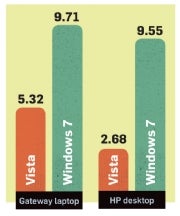
In our WorldBench 6 Nero tests, Windows 7 showed big improvements. Performance nearly doubled on average over Vista, which indicates that the new OS enhances hard-disk performance. *Average of results from six test PCs. Lower time equals better performance.
Windows 7 makes big gains in disk performance, however. For example, in our hard-disk-intensive WorldBench 6 Nero test--in which we create a series of images of an optical disc and then save them--every PC we tested showed an improvement. In our comparison of the 64-bit versions of Vista and Windows 7, the IdeaPad Y530 performed the test twice as quickly with the newer OS. Meanwhile, our Gateway T-6815 was almost two and a half times faster, going from a time of 1648 seconds to complete the test on Windows Vista to a time of 667 seconds on Windows 7. We had noticed a similar speedup on disk-intensive tests in our earlier evaluation of the Windows 7 release candidate; such gains may be due to updated hard-disk drivers under Windows 7.

One particular result worth noting: In our testing, the 64-bit versions of Vista produced poorer disk performance than the 32-bit Vista editions did. With Windows 7, however, Microsoft brought the 64-bit versions' disk performance more in line with that of the 32-bit versions. That explains the larger WorldBench 6 score advantages over Vista that we saw from 64-bit Windows 7 compared with 32-bit Windows 7.

Boot-Up and Shutdown Times

Microsoft says that in Windows 7 it changed the way the operating system handles starting up processes when you boot your computer. For some processes and services, Microsoft employs a scheme called trigger-start services. These are system services and processes that under Vista would have started up when you booted your PC, but now kick in only as needed. One example Microsoft gives is Windows 7's handling of Bluetooth: Instead of launching at system boot, Bluetooth now starts up when you use a Bluetooth device with your PC. Reducing the number of services that start at boot is supposed to reduce boot-up time.

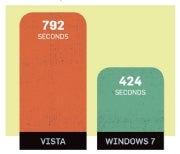
Launching Photoshop took two to three times longer on the new OS, but that isn't a big deal--the difference was still just a few seconds. *Times are in seconds. Shorter times indicate better performance.
In our boot-up tests using one desktop and one laptop, though, we saw mixed results. On our Gateway T-6815 laptop, Windows Vista Home Premium (32-bit) had the advantage, booting up in 39.6 seconds on average. Windows 7 Home Premium (also the 32-bit edition) took slightly longer, averaging 43.6 seconds. On our HP Pavilion a6710t test desktop, the outcome was reversed. The 64-bit edition of Windows Vista Ultimate Edition booted in 55.2 seconds, whereas Windows 7 Ultimate Edition 64-bit came out slightly ahead, booting in 48.3 seconds.

At first, we couldn't explain why the 64-bit edition of Windows 7 improved the boot-up time over Vista (on the HP desktop) while the 32-bit edition of the new OS lagged behind its predecessor (on the Gateway laptop). In subsequent testing, however, we discovered that the 32-bit version of Windows 7 exhibited a similar speedup on our HP desktop, going from an average of 54.5 seconds on Vista 32-bit to 47.7 seconds on Windows 7 32-bit. The upshot: Whether Windows 7 will start faster than Vista for you will likely depend on your particular computer's setup.

As for shutdown times, in our tests we observed no significant difference between Windows 7 and Windows Vista. On our Gateway T-6815 laptop, the 32-bit version of Windows Vista Home Premium shut down in 11.72 seconds on average. The 32-bit Windows 7 Home Premium took 11.57 seconds to shut down--an improvement of a mere 0.15 second. The results were just as tight on our HP a6710t desktop. The 64-bit Vista Ultimate shut down in 9.1 seconds on average, while the 64-bit Windows 7 Ultimate took 9.0 seconds--a negligible difference of just 0.1 second.

To say that such results are too close to call would be an understatement: The difference between the two is so minor that you likely wouldn't notice it even if you had the OSs running side-by-side on identical hardware.

Granted, boot-up and shutdown times aren't as important today as they once were, now that many people use their computer's sleep or hibernate mode instead, but in either case you'll probably find only slight differences, if any. (Nick Mediati, PC World)

Saturday, October 31, 2009

Microsoft Axes Office Accounting Software

Saturday, October 31, 2009

Microsoft quietly announced Friday that it plans to kill off its Office Accounting products, beginning Nov. 16.

"After evaluating the product over the past few years, we have determined that other Microsoft offerings, such as free templates in the Office system used with Excel and the Dynamics product, are able to meet our customers' needs," a Microsoft (NASDAQ: MSFT) spokesperson said in an e-mailed statement.

The package, the current version of which is Office Accounting 2009, provides templates, tools and other add-ons to support small-business accounting within Microsoft's Office productivity suite.

It has been a head-to-head competitor to Intuit's QuickBooks packages, among other rivals.

The company said it would drop the entire family of Office Accounting products in the U.S. and U.K., including Office Accounting Express, Office Accounting Standard, Office Accounting Professional, Office Accounting Professional Plus, Office Accounting 3-user and Small Business Accounting, according to an FAQ posted online.

Office Accounting Express, which is free, was introduced with Office Accounting 2007.

Microsoft said, however, that although customers may be orphaned, they can continue to run the products during the support lifecycle.

"Existing customers will receive five years of mainstream support and five years of extended support," the spokesperson said.

Meanwhile, some services supported in the software will expire Dec. 15. For instance, online sales from eBay as well as credit profile information from Equifax will be discontinued after that date, according to the FAQ.

Other services are expected to continue -- at least for now. These include the ability for customers to pay e-mailed invoices via PayPal, support for credit card processing services, and the ability to order checks and forms that are compatible with the software.

"The Office Small Business Web site has links to free templates for small businesses, such as invoices, expenses, time sheets, budgets and more," the spokesperson added.

In addition, it's not too late to get a refund for users who recently purchased an Office Accounting package. Returns will be valid within 30 days of purchase, according to the FAQ.

Microsoft has posted additional information for Office Accounting users online. ( By Stuart J. Johnston)

Friday, October 30, 2009

Ubuntu Linux 9.10 'Karmic Koala' Starts Its Climb

Friday, October 30, 2009
Ubuntu
In February, Ubuntu Linux founder Mark Shuttleworth announced that Ubuntu 9.10 would be codenamed the "Karmic Koala". Today, after months of development and buzz, the Karmic Koala is being officially released into the wild.

The open source OS's developers are simultaneously releasing the server, desktop and netbook editions of Ubuntu 9.10 today, offering what Shuttleworth earlier this week referred to as a complete platform that he hopes will become the default alternative to Microsoft's Windows operating systems.

The first thing that new users are likely to notice about the Karmic release is the speedier boot process.

"The boot process is now substantially faster in Karmic than it has been in any previous Ubuntu release," Shuttleworth said in a conference call with the media earlier this week. "We have a goal to get to a 10-second boot, and Karmic is a nice step in that direction."

The previous Jaunty Jackalope Ubuntu Linux release had made similar boot speed gains when it debuted in April.

Among the new features of the Karmic releases is the Ubuntu Software Center, which is an attempt to revamp the add/remove software function in Ubuntu. Shuttleworth explained that Ubuntu is headed in the direction of opening up the software delivery mechanism both to empower third-party ISVs and to make it a smoother experience for users.

Shuttleworth is also hoping that the new Ubuntu release won't give users "paper cuts," either. As part of the release cycle for Karmic, Ubuntu started a project called 100 Paper Cuts, which aimed to eliminate bugs and trivial annoyances that users had identified. Shuttleworth reported that for the final release, there had been some 80 "paper cut" fixes.

With Karmic, Ubuntu is also opening up a new effort to deliver network services to the user's desktop with the Ubuntu One service. Ubuntu One provides users with 2 GB of free backup storage and cloud synchronization, housed on Amazon's S3 cloud storage service and paid for by Shuttleworth's company Canonical, which is Ubuntu's lead commercial sponsor.

Ubuntu One also offers an option to purchase 50 GB of cloud-based storage.

In Karmic, Ubuntu One is focused on file management as well as some contact and address book management. But in the future, Shuttleworth said that Ubuntu One will move into other areas, such identity management.

"We really are starting to combine the idea of free software with services direct to the desktop and shifting the emphasis from the personal computer to personal computing," Shuttleworth said. "This is blurring the lines between traditional desktop software and what people are referring to as computing in the cloud."

On the server side of Ubuntu, enabling the cloud is also a key goal, courtesy of the Ubuntu Enterprise Cloud (UEC), another enhanced feature of the Karmic release. UEC made its initial Ubuntu debut in the Jaunty Jackalope release in April with full enterprise support services following several months later. In the Karmic release, UEC is being more tightly integrated into the server as well as being enabled with a UEC store for applications. The application store packages cloud-ready application for easy consumption and deployment by enterprise users -- similarly to models like Apple's App Store for the iPhone.

While Ubuntu has added features and performance improvement on its server OS, it still faces a strong competitive battle against Linux rivals Red Hat and Novell in the enterprise space. One area that Ubuntu has focused on with past releases is server certification for enterprise hardware, though that wasn't a key focus in the Karmic release.

"The general server story continues to improve, it is wonderful to see the rate of adoption of adoption of Ubuntu on the server generally," Shuttleworth said. "Our relationships on the hardware front are improving, but we have no new server certification announcements to make with this release." ( By Sean Michael Kerner)

Thursday, October 29, 2009

Google Shows Off Chrome Themes With Cool YouTube Hack

Thursday, October 29, 2009

Click on the image above (or here) to see the video Google just posted to YouTube to promote its new theme library for the Google Chrome browser. The themes, which are designed to give your browser’s skin a splash of color and personality, were developed by famous artists and designers.

The video in the link shows some of them off, but be sure to watch until the end, when the browser skin literally explodes out of the video frame and takes over the page. Once the video is over, there’s more cool page-skinning trickery to be had — the video player window turns into a theme browser you can click through, altering the design of the YouTube page itself.

Chrome is only available now in stable form for Windows users. Mac and Linux versions are still in development and will be finalized later this year.

Google first began developing themes for Chrome in August, as we noted in a previous report. Firefox has a similar theming architecture for its browser called Personas, which you can explore at Mozilla’s dedicated Personas site. (By Michael Calore)

Wednesday, October 28, 2009

Google Experimental: Keyboard Navigation For Search Results

Wednesday, October 28, 2009

When using the new shortcuts page you’ll see an arrow icon to left of the active result and you can scroll up and down through the results, as well as jump in and out of the search box and open links all without leaving the keyboard (screenshots after the jump).

The keyboard shortcut navigation options are summarized in the table below.

Key Action
J Selects the next result.
K Selects the previous result.
O Opens the selected result.
Enter Opens the selected result.
/ Puts the cursor in the search box.
Esc Removes the cursor from the search box.

Unfortunately this feature isn’t as easy to get to as the Timeline and Maps tools with their operator shortcuts. In order to land on the keyboard beta page you’ll have to go through the Google Experimental page or append the param &esrch=BetaShortcuts to the end of your search URL.

So far I haven’t been able to locate one, but this seems like the perfect place for a new Google Search plugin for Firefox.

All that’s necessary is to take the existing Firefox Google Search tool and modify it so that it appends the above param to the URL. If you run across such a thing be sure to let us know.

The biggest downfall to the new shortcuts is that they don’t seem to follow the preference setting to open results in a new window. A quick glance at the code shows that the links carry a target=nw which means at least some of the page is aware of the new window setting. Unless someone can explain otherwise I would call that a bug.

Still, for keyboard junkies like myself, the new options are a godsend. Hopefully Google will sort out a way for the open command to respect the new window setting in the near future.

Be sure to check out the previous Google Experimental coverage of Maps and Timelines. (By Scott Gilbertson)

Tuesday, October 27, 2009

Mozilla’s ‘Snowl’ May Eventually Change the Way You Browse the Web

Tuesday, October 27, 2009

As part of the ongoing Mozilla Labs project, the company has released Snowl, a new plugin designed to help you keep track of and participate in online discussions — regardless of where they’re happening and what delivery system they pass through.

The idea behind Snowl is that there’s a common thread between our seemingly separate online conversations — they’re conversations — and ultimately is shouldn’t matter where the messages originate. As Mozilla says, “they’re alike, whether they come from traditional email servers, RSS/Atom feeds, web discussion forums, social networks, or other sources.” Snowl’s goal is the bring them all together in one place — the browser.

Unfortunately Snowl currently only supports two message sources: RSS/Atom feeds and Twitter. When limited to RSS and Twitter, Snowl doesn’t offer many advantages over Google Reader or similar services, but if Snowl reaches its loft goals, it may well change the way you use your browser.

For now though, you’ll have to make do with some imagination. One very nice feature I did like is the ability to browse through Twitter messages by person, something I can’t do with my Twitter feed in Google Reader.

Snowl’s standout feature is that it offers two different browsing interfaces. The first is a traditional three-pane window like your average desktop mail app. Presumably this is where you would read potentially import stuff like email, key RSS feeds and the like.

Snowl

The second interface is a “river of news” view that looks a bit like a newspaper. Built on some of Dave Winer’s ideas, the river of news view is designed for quickly scanning through casual messages — your Twitter friends and perhaps eventually Facebook feeds and more.

Snowlriverview

Differentiating the two views sounds like a great idea, however, in practice the river of news view was somewhat ugly and felt clumsy. Of course Snowl is still highly experimental and definitely has a few quirks and bugs to work out (if you don’t see the river of news view right away, refresh the page and it should load). Warning: Snowl doesn’t play nice with Google Reader, the two created some sort of reloading loop that crashed Firefox repeatedly until I closed the Google Reader tab.

However, despite being an early and very rough prototype, Snowl definitely has potential. If and when Snowl can handle other forms of data — email, SMS, Chat, FriendFeed, Facebook, etc — it’s not hard to see how it could end up changing the way you use your browser.

If you’d like to take it for a spin, you can download Snowl from the Firefox Add-on site (registration is required for experimental add-ons). (By Scott Gilbertson)

Monday, October 26, 2009

Google Chrome Is Growing Up, Slowly but Surely

Monday, October 26, 2009

Most everyone acknowledges Google Chrome is both lightweight and lightning-fast, but the browser often falls short in the features department when compared to other offerings like Firefox and Safari.

However, several improvements will be showing up soon in Google’s web browser that bring it further up to speed with the competition in the features department.

Google is adding some rather sophisticated cloud-based data synchronization capabilities to its browser, according to a post on the Chromium mailing list (an e-mail list for developers working on Chrome’s code, which is open-source) from Friday.

The new features will let users sync their Google Accounts to Google Chrome. At first Chrome will just sync bookmarks, but looking at the documentation, it’s clear Chrome will be able to sync other user data — user preferences and more sensitive stuff like login credentials — in future releases. The sync features could start showing up in Chrome developer releases as early as this month, according to Ars Technica.

So, you’ll soon be able to load any instance of Chrome on any computer, log in to Google, and have access to all of your bookmarks. Firefox has a similar system called Weave, which is made by Mozilla and is available as an add-on along with a server-side component that can be run privately. However, Google’s sync plans involve “push” style notifications that provide instant updates, whereas Weave and sync tools like it rely on polling, so data is updated only when a button is clicked.

It was revealed last week that Google is also adding a theming system to Chrome, so users can apply skins and custom color schemes. Again, Firefox has its own themeing system called Personas.

There are other things happening in Chome’s universe as well. The latest builds have seen a speed boost on some Linux desktops, and the still-nascent Mac version of Chrome is close to offering support for the Flash Player.

In the world of web browsers, raw speed and useful features have always been a trade-off. Make a browser as lightweight and devoid of unnecessary features as possible, and it will require fewer system resources to get its job done faster, feeling snappier to the user and rendering pages more quickly. But people have come to expect more than just a blank window to the web, so browser makers have added things like bookmark and history managers, skinning and theming options, identity managers and bug reporting systems to their browsers’ default installations.

It’s a game of balance — add too few features and users feel cheated on what they’ve come to consider basic functionality. Add too many features and you start to slow the browser down.

The biggest browser makers, Microsoft and Mozilla, have gone the route of constructing plug-in architectures so people can add whatever extra third-party features they want. But Google and Apple have largely shied away from plug-ins so far — though there are some for Safari and Google is taking baby steps.

So do these latest developments mean that Chrome is slowly going to bulk up and become a contender? If so, signs point to the “filling out” kind of bulking up and not the “bloating” kind. Maybe it’s moving from featherweight to middleweight, at least.

Chrome’s svelte frame is why its proponents love it, though those same evangelists will also admit they keep Firefox around simply because of all the cool stuff it can do that Chrome can’t.

To take advantage of all the latest features showing up in Chrome, you need to download the Channel Chooser and make sure you switch to the developer’s stream. That’s the only way to get the latest experimental updates. (By Michael Calore)

Sunday, October 25, 2009

Use Google Experimental Search Features Today

Sunday, October 25, 2009

Earlier this year Google Labs rolled out some new experimental search features like keyboard shortcuts and alternate views for search results, however, when they first launched, the new features were only available through the Google Labs interface. Thankfully, Google has now made it possible to join the various experiments and use them on the normal Google Search homepage.

To join an experiment just head over to the Google Labs page and select which features you’d like to use. Regrettably it’s only possible to add one feature at a time, but that’s still better than visiting the Labs page every time you want to search.

Personally I’m a keyboard junky so the very GMail-like keyboard shortcuts are now enabled on my Google Search page, which means I can click through to returned search results without taking my hands off the keyboard — a great time saver. The only drawback is that the first “selected” link is invariably the ad, but it still beats reaching for the trackpad or mouse.

Other options include right and left hand navigation menus and alternate search views (the latter can also be triggered by using some search operator keywords). For more details on how each of the experiments works, check out our earlier reviews (listed below) or just try them out for yourself.

[via Google Operating System]

Saturday, October 24, 2009

Mozilla’s Raindrop Wants to Solve Your Communication Woes

Saturday, October 24, 2009

It’s called Raindrop, and it fetches all of your communications from different sources like mail servers, Twitter and RSS feeds. Then, Raindrop intelligently surfaces the “important parts,” giving them priority and allowing you to reply or interact with the communications inside your web browser. Like all Mozilla projects, Raindrop is open-source software — it’s actually a mini web server that you run locally and access through your browser. At the time of Thursday’s launch, Firefox, Safari and Chrome are supported, with Internet Explorer notably absent from the list.

While Raindrop is rough around the edges in this early release, Mozilla is hoping to build a one-stop communication platform that will give you a single place to view all your messages, e-mail, shared photos and other social tools.

The “intelligent” part of Raindrop would allow, for example, direct messages and @replies from Twitter to be highlighted over regular incoming messages not directed specifically to you. E-mails that come in can be sorted to give priority to messages from your closest friends, replies and active threads you’re participating in. The idea is to make Raindrop a people-centric communication tool that emphasizes your friends over mailing lists, rote announcements and other not-quite-spam messages.

That might sound a bit like Google Wave, which is also trying to re-imagine web-based communication from the ground up. But while Raindrop and Wave share some similar features, including the ability to view images and videos inline, Google Wave is a much more radical departure from the status quo. Raindrop is more familiar, since it essentially melds a few things you’re already using — an e-mail inbox, a Twitter client and an RSS reader — into a singular, streamlined interface. Raindrop is also similar to Mozilla Lab’s existing Snowl project, which puts a river of news and e-mail messages in Firefox. But unlike Snowl, which is a Firefox plugin, Raindrop is a standalone system that even features an API that will allow developers to build their own add-ons, extending Raindrop as they see fit.

So, Raindrop will only gain functionality over time through widgets, add-ons and media-specific enhancements for services like YouTube and Flickr. In that sense, Raindrop could be seen as a logical extension of where Google has been taking Gmail recently by letting users add widgets for chat, calendar, RSS updates and other communication tools to Gmail’s browser-based inbox.

At the moment, Raindrop is a developer release, which means there’s no installer to download. The Labs team is making a downloadable installer one of its top priorities for the project. Interested developers can check out the code and run the startup script manually (see the Mozilla wiki for details). It’s not a plug-in or a desktop client — once Raindrop reaches the packaged installer stage, you’d set it up and then visit a local URL to see your messages.

I was able to install the developer code with no problems on my local machine. After telling Raindrop my Gmail and Twitter account info, the script dutifully fetched my messages.

Raindrop’s overview of your Inbox. Click the image for a larger view.

As you can see in the image above, Raindrop retains Gmail’s threaded conversation view, however, in this case Raindrop failed to filter out a message from a local wine shop, which, while not spam, is nevertheless not something I would want prioritized.

Still, Raindrop is clearly a work in progress and despite not being perfect, it did do a pretty good job of filtering out less important conversations.

Raindrop inline e-mail and Twitter messages. Click the image for a larger view.

As you can see, Twitter updates are shown inline with e-mail threads. Other messages, like mailing list subscriptions, are filtered out of the main conversation flow and given their own boxes so you can see what’s new without fully disrupting your more personal communications.

At the moment, any filtering or message deleting in Raindrop does not appear to sync back to your mail server. This is a serious flaw that we expect will be addressed before Raindrop reaches the downloadable stage.

This early developer release of Raindrop isn’t much to look at yet. But I should note that Mozilla has already spun out a new design that looks a bit more like Snowl:

Raindrop’s newer interface (image courtesy of Mozilla). Click the image for a larger view.

The newer look is a bit cleaner and abandons the traditional e-mail-style layout in favor of something more free-flowing.

Raindrop is clearly still very experimental and not meant for even casual usage, but we’re looking forward to seeing where Mozilla Labs takes the project.

Wrapping your head around Raindrop is difficult to do without actually using it and, due to the lack of an installer, using it is beyond most users at this point. Thankfully, Mozilla has posted this video which gives you nice overview of how Raindrop works.

Raindrop UX Design and Demo from Mozilla Messaging on Vimeo. (By Scott Gilbertson)

 
Computer & Internet Info © 2008. Design by Pocket